1. Getting Started
Before building your site, you should take a look at this section.
1.1 Theme Installation
Extract the zipped package you downloaded from ThemeForest to your desktop. Inside the extracted package, you'll find the charles.zip file, which is the WordPress theme.
You can install the theme in two ways:
FTP: Extract charles.zip file and upload the extracted folder to /wp-content/themes/ folder on your server.

WordPress: Navigate to Appearance -> Add New Themes -> Upload page. Select charles.zip file. Press the Install Now button to upload and install the theme.
After uploading the theme, you'll need to activate it. Go to the Appearance -> Themes page to activate the theme.
1.2 Import Demo
If you want your site to look exactly like the "Charles" demos, you'll need to successfully import the demo content.
We have integrated the One Click Demo installation feature into the "Charles" WordPress theme. You can import all demo content with just one click.
OneClick Demo Installation Process
- Install the theme and activate it. Then install all the required plugins. Make sure all the required plugins are activated.
- After activating all the required plugins, go tothe Appearance > “One Click Demo Import”menuin the WordPress dashboard.
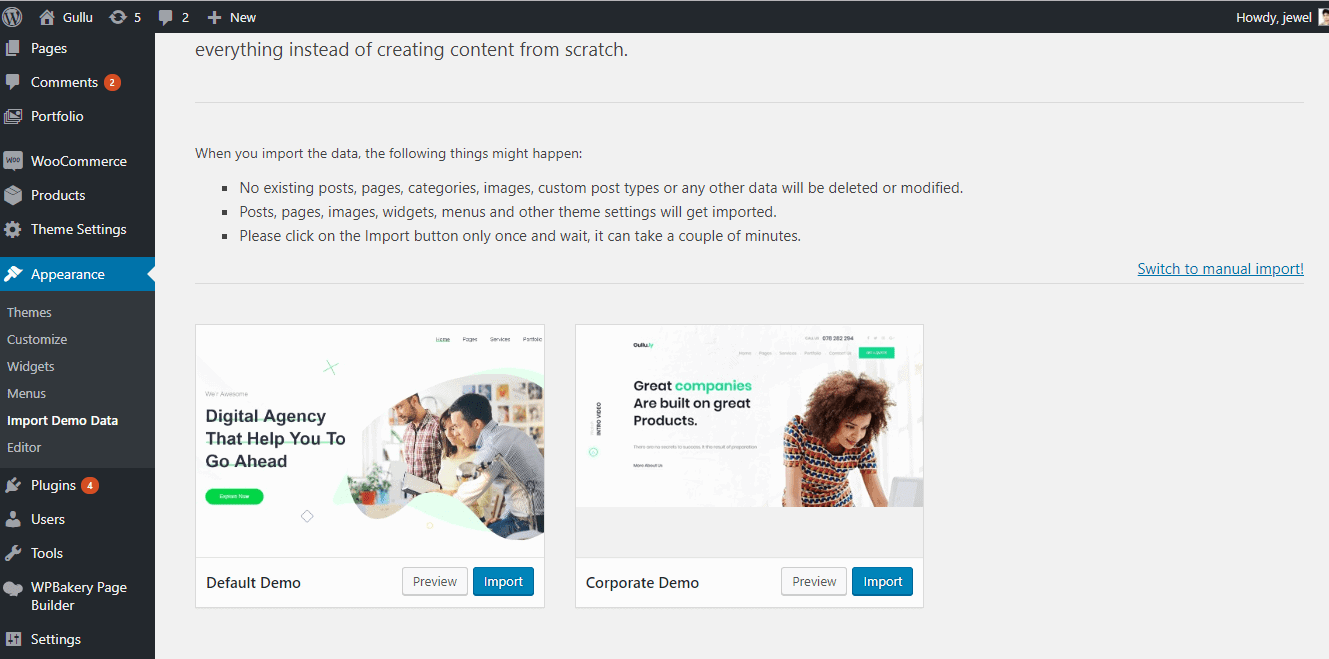
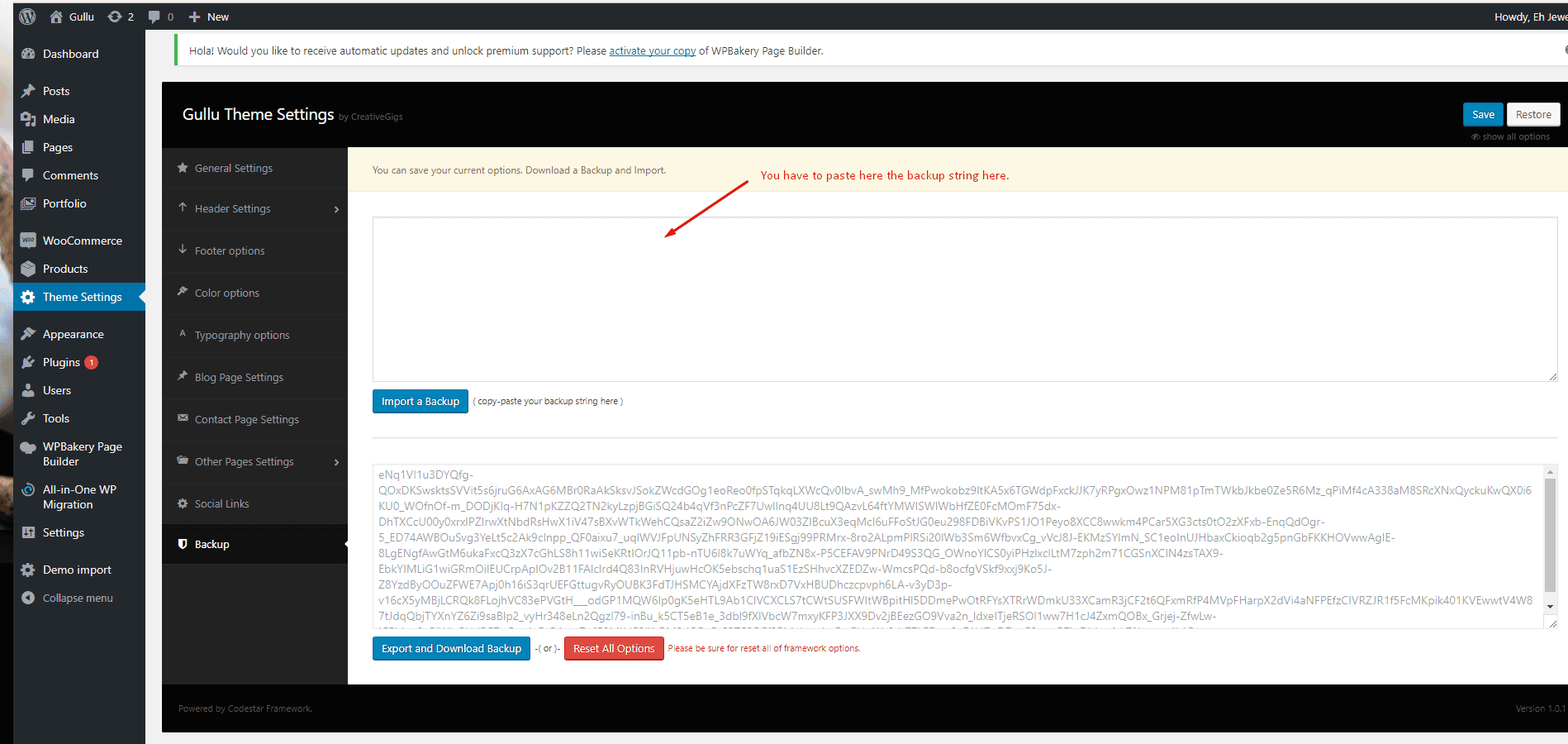
Note:If the option data does not import, you will need to import it manually. Go to “Theme Settings > Backup.” Then copy and paste the backup string here and click the “Import a Backup” button. You’ll find the backup string in the options.txt file.
The recommended method for importing the demo content.
If you were unable to import the demo content with a single click, you'll need to follow the steps below to import the demo content manually. All demo content data is included in the theme package. You'll find the demos in ‘charles>inc/demo{desired-demo-number} this path.
- Go to Tools > Import then install the WordPress plugin and click “Run Importer.” Upload the “theme_content.xml” file here.
- Install the ‘Widget Importer & Exporter’ plugin to import the demo widgets. Then go to Tools > Widget Importer & Exporter and upload the ‘widget_data.wie’ file here.
- Now you need to import the Dental Options just like in the demo. Go to“Theme Settings > Backup.” Then copy and paste the backup string here and click the “Import a Backup” button. You’ll find the backup string in the options.txt file.
1.3 Required Plugins
After installing the theme,you must also install the “Charles Core,” “Elementor,”and“Piklist”plugins to import the demo content and ensure the theme works properly.
You'll find all the required and recommended plugins at Appearance > Install Plugins.
1.4 System Requirements
To use Charles, you need a WordPress 4.0 (or later) site running PHP 5.4 or later on your hosting server. If you’ve already installed WordPress on your server and your site is up and running, that’s great. For help with installing WordPress, please see thisWordPress Codex link.
Here are some more resources from the WordPress Codex: